
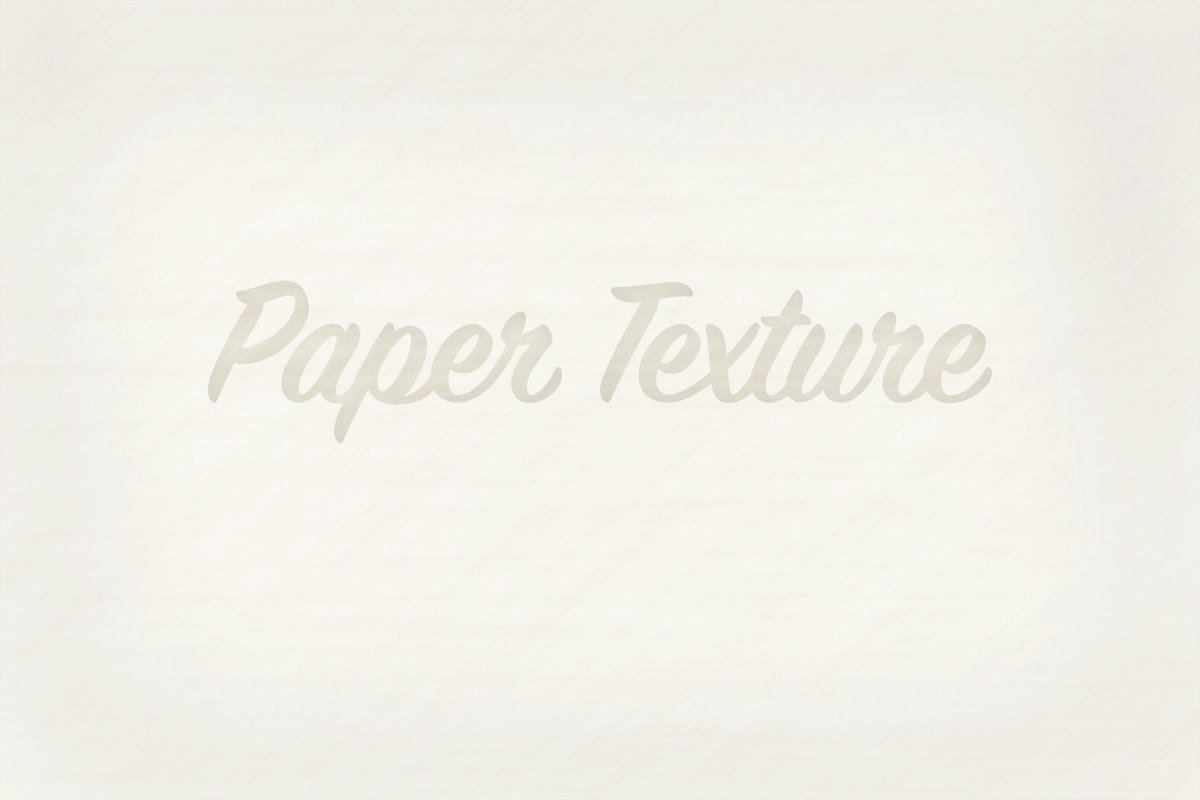
Paper texture is one of those design elements that looks simple until it looks wrong. Too much noise and it feels fake. Too much contrast and it looks dirty. Not enough variation and it looks like a flat beige rectangle.
The goal is subtlety.
In this Photoshop tutorial, we’ll create a realistic paper texture from scratch using built-in Photoshop tools. You can use the final texture as a background for album covers, wedding invitations, client welcome guides, blog graphics, or any design that needs a soft, handmade feel.
What You’ll Create
By the end of this tutorial, you’ll have a reusable paper texture that includes:
- Soft fiber-like grain
- Slight color variation
- Natural unevenness
- Subtle depth and lighting
- A flexible layered Photoshop file you can reuse
You do not need a photo of paper to follow along. Everything can be created directly in Photoshop.
Step 1: Create a New Photoshop Document
Open Photoshop and create a new document.
For a general-use texture, try:
- Width: 3000 px
- Height: 2000 px
- Resolution: 300 ppi
- Color Mode: RGB
If you are creating this specifically for print, you can work at the final print size instead. For example, if you’re designing an album cover, set the document to match the cover dimensions plus bleed.
Once your document is open, create a new layer and name it Base Paper Color.
Step 2: Add a Warm Paper Base
Select the Base Paper Color layer.
Choose a light warm paper color. A good starting point is something like:
#f2eadc
Fill the layer with that color by going to:
Edit > Fill > Color
This gives you the foundation of the paper. Avoid pure white. Real paper usually has a slight warmth, even when it appears white.
Step 3: Add Noise for Fine Paper Grain
Create a new layer above the base layer and name it Fine Grain.
Fill this layer with 50% gray:
Edit > Fill > 50% Gray
Then go to:
Filter > Noise > Add Noise
Use these settings as a starting point:
- Amount: 8–12%
- Distribution: Gaussian
- Monochromatic: Checked
Set the layer blend mode to Overlay or Soft Light.
Lower the opacity to around 20–35%.
This creates the tiny irregular grain that gives paper its surface texture. The key is to keep it subtle. You should feel the texture more than you notice it.
Step 4: Soften the Grain Slightly
With the Fine Grain layer selected, go to:
Filter > Blur > Gaussian Blur
Use a very low setting:
- Radius: 0.3–0.7 px
This keeps the grain from looking too digital or sharp.
If the texture disappears too much, increase the layer opacity slightly. If it looks gritty, reduce the opacity.
Step 5: Create Paper Fibers
Now we’ll add longer, more organic fibers.
Create a new layer and name it Paper Fibers.
Fill it with 50% gray again:
Edit > Fill > 50% Gray
Then go to:
Filter > Render > Fibers
Use settings similar to:
- Variance: 8–15
- Strength: 3–6
Click Randomize until the pattern looks natural.
Set the blend mode to Soft Light and lower the opacity to around 10–25%.
At this point, the texture may look too directional. That’s okay. We’ll break it up next.
Step 6: Make the Fibers More Natural
With the Paper Fibers layer selected, go to:
Filter > Blur > Gaussian Blur
Use:
- Radius: 0.5–1.5 px
Then go to:
Edit > Transform > Rotate 90° Clockwise
Duplicate the Paper Fibers layer and rotate the duplicate back or in a different direction.
Lower the opacity of both fiber layers until the texture feels balanced.
Real paper fibers do not all run perfectly in one direction, so layering subtle fiber patterns helps the texture feel more realistic.
Step 7: Add Uneven Color Variation
Create a new layer above the fiber layers and name it Color Variation.
Select a soft round brush with:
- Opacity: 5–10%
- Flow: 10–20%
- Hardness: 0%
Choose a slightly warmer color than your base, such as:
#ead8bd
Paint softly in a few random areas.
Then choose a slightly cooler or lighter color, such as:
#fff8ed
Paint in a few other areas.
Go to:
Filter > Blur > Gaussian Blur
Use a large blur radius, such as:
- Radius: 80–150 px
Set the blend mode to Soft Light or Overlay, and lower the opacity until the effect is barely noticeable.
This step prevents the paper from looking flat and computer-generated.
Step 8: Add Subtle Clouds for Organic Texture
Create a new layer and name it Cloud Texture.
Set your foreground and background colors to a light beige and off-white.
Then go to:
Filter > Render > Clouds
Set the blend mode to Soft Light.
Lower the opacity to around 10–20%.
If the clouds are too strong, apply a Gaussian Blur:
Filter > Blur > Gaussian Blur
Try:
- Radius: 30–80 px
This adds broad natural variation, similar to the uneven surface and density of handmade or textured paper.
Step 9: Add a Slight Vignette
Paper rarely looks perfectly even from edge to edge, especially when photographed or used in a design mockup.
Create a new layer and name it Edge Shading.
Select a large soft brush and choose a light brown or gray-beige color.
Paint gently around the edges of the canvas.
Set the blend mode to Multiply and reduce the opacity to 5–15%.
You want the edges to feel slightly deeper, not visibly dark.
Step 10: Add Optional Embossed Texture
If you want the paper to feel thicker or more tactile, you can add a very subtle emboss effect.
Select the Fine Grain or Paper Fibers layer.
Duplicate it.
Then go to:
Filter > Stylize > Emboss
Use settings like:
- Angle: 135°
- Height: 1–2 px
- Amount: 30–60%
Set the blend mode to Soft Light and lower opacity to 5–15%.
Be careful with this step. Embossing can quickly make the texture look artificial. Keep it understated.
Step 11: Adjust the Overall Color
Add a Hue/Saturation adjustment layer at the top.
Check Colorize only if you want a stronger color cast. Otherwise, use the adjustment layer normally.
Try small changes:
- Lower saturation slightly for a cleaner paper look
- Increase lightness for white paper
- Shift hue warmer for cream paper
- Shift hue cooler for gray stationery paper
You can also add a Curves adjustment layer to control contrast.
For realistic paper, avoid heavy contrast. Paper texture usually works best when it stays quiet in the background.
Step 12: Save Your Paper Texture
Save your layered Photoshop file first:
File > Save As > Photoshop PSD
Then export a flat version:
File > Export > Export As
For web use, export as JPEG or PNG.
For print or album design, keep a high-resolution version that matches your final output needs.
How to Use This Texture in Album Cover Design
Once your paper texture is finished, you can use it as a background layer for album covers, title pages, stationery, or presentation mockups.
For an album cover, try this workflow:
- Place the paper texture as your background.
- Add a simple title or monogram.
- Use subtle typography instead of heavy effects.
- Add a slight shadow or emboss effect to the text if needed.
- Keep the design clean so the texture supports the photography rather than competing with it.
Paper textures work especially well for wedding albums because they add warmth without feeling trendy or over-designed.
Tips for a More Realistic Result
The best paper textures are usually restrained. If your texture is the first thing people notice, it may be too strong.
A few tips:
- Use low opacity layers.
- Avoid pure white and pure black.
- Add variation at multiple scales: fine grain, fibers, and broad color shifts.
- Blur digital noise slightly.
- Keep contrast low.
- Test the texture behind actual text or album-cover artwork.
A texture that looks too subtle by itself may be perfect once it’s used in a real design.
Optional: Create Different Paper Styles
Once you have the basic file, duplicate it and create variations.
Bright White Paper
Use a cooler base color and reduce saturation.
Try:
#f7f6f2
Cream Wedding Stationery
Use a warmer base color and slightly stronger fiber texture.
Try:
#f3e5cc
Recycled Paper
Add more color variation, slightly darker fibers, and a few tiny specks using a small brush.
Try:
#ded2b8
Fine Art Paper
Keep the color light, reduce noise, and use more subtle fiber layers.
Try:
#f5efe3
Using Paper Textures in Your Album Proofing Workflow
Textures are often part of the creative design process, especially when building album covers, title pages, or presentation spreads. But once the design is ready, the client review process needs to stay simple.
If you design albums in Photoshop or InDesign, Banti Album Proofing can help you send album layouts to clients, collect comments, and manage revisions without relying on long email threads. Banti also offers an Adobe extension that lets you review and respond to client comments directly from Photoshop and InDesign, which keeps the creative and proofing workflow connected.
That means you can spend more time designing polished albums and less time tracking scattered feedback.
Final Thoughts
Creating a realistic paper texture in Photoshop is less about one dramatic effect and more about layering small, subtle details.
Start with a warm base color. Add fine grain. Add soft fibers. Introduce slight color variation. Then reduce everything until it feels natural.
The result is a flexible texture you can reuse across album covers, wedding designs, stationery, mockups, and other photography-related design projects.